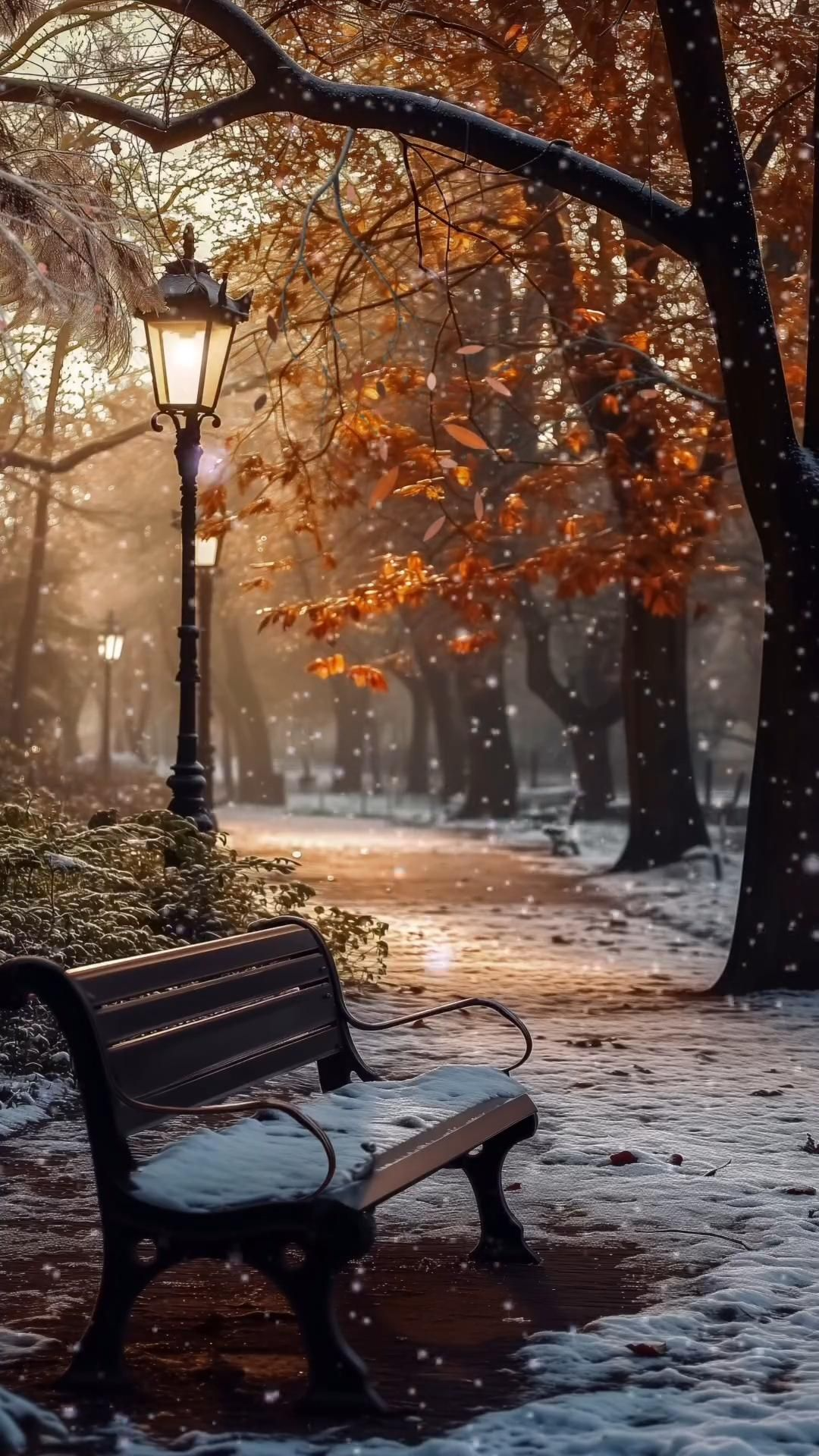
Winter Wallpaper iPhone: The Complete Guide to Finding and Setting the Perfect Look
Winter wallpaper for iPhone is one of the most searched seasonal customization trends, as millions of users refresh their lock and home screens to match the colder months. From snowy landscapes to cozy minimalist designs, the right winter wallpaper can completely transform the feel of your iPhone. This guide covers everything you need to know about finding, choosing, and setting winter wallpaper on iPhone, along with tips specific to Apple’s display and customization features.
Why iPhone Wallpaper Needs Special Consideration
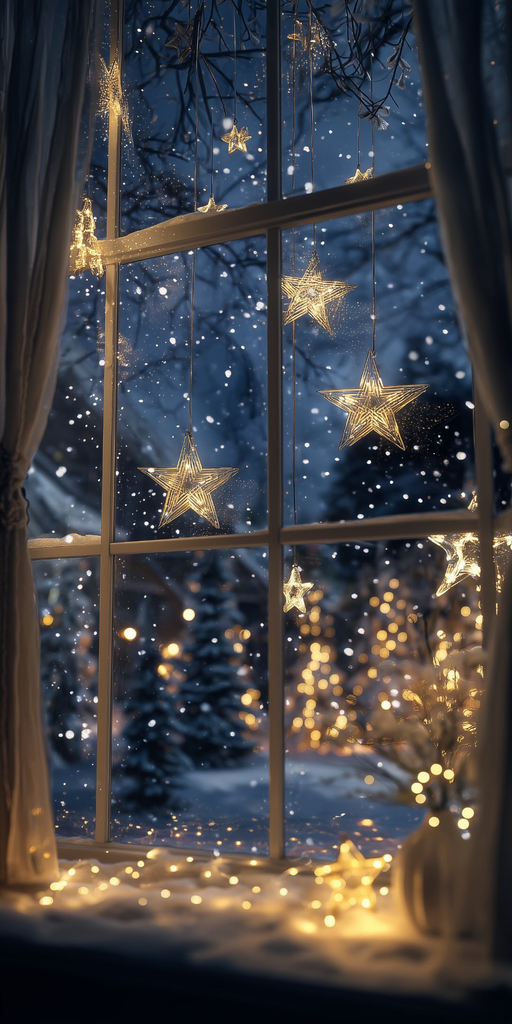
Unlike desktop wallpaper, iPhone wallpaper must work within a much smaller, vertical screen while also accommodating the Dynamic Island, app icons, widgets, and the lock screen clock. This means winter wallpaper for iPhone often requires simpler compositions than desktop equivalents, with clear focal points and enough negative space to avoid visual clutter. Understanding these constraints helps in choosing wallpaper that looks polished rather than cramped or busy on a smaller screen.
iPhone Screen Resolutions and Winter Wallpaper Sizing
Different iPhone models have different screen resolutions, and choosing a wallpaper sized correctly for your specific device prevents stretching, cropping, or blurriness. Newer iPhone models with Super Retina XDR displays require higher-resolution images to look sharp, while older models may need slightly different aspect ratios. Most winter wallpaper sources designed specifically for iPhone will list compatible models or provide multiple resolution options to match various screen sizes.
Lock Screen vs. Home Screen Winter Wallpaper
iOS allows different wallpapers for the lock screen and home screen, and many people take advantage of this by using distinct winter designs for each. Lock screen wallpaper often benefits from a more detailed or scenic image, since it’s viewed briefly and doesn’t need to compete with app icons. Home screen wallpaper, by contrast, often works better as a simpler, more muted design that won’t clash with icons and widgets layered on top throughout the day.
Popular Winter Wallpaper Styles for iPhone
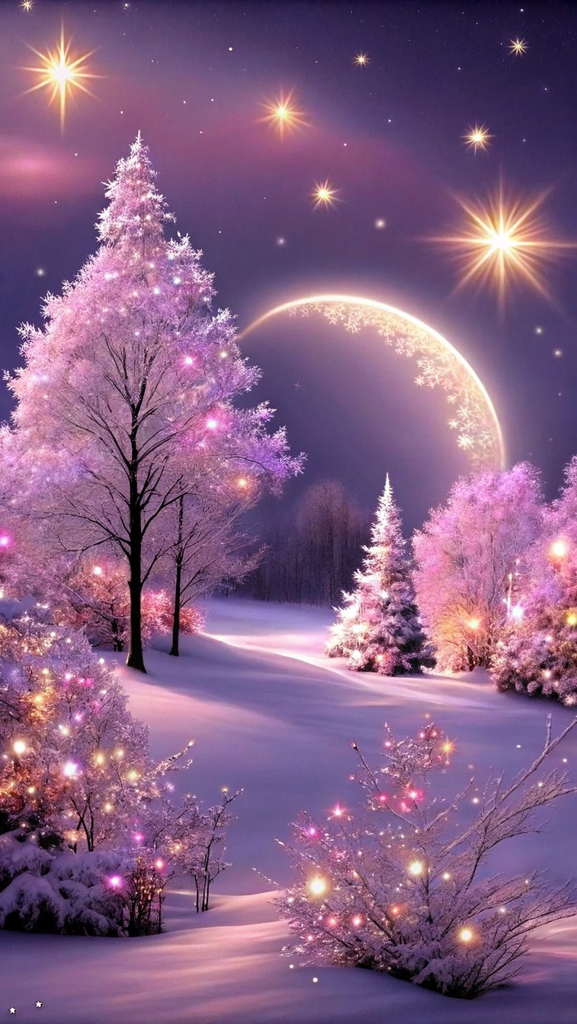
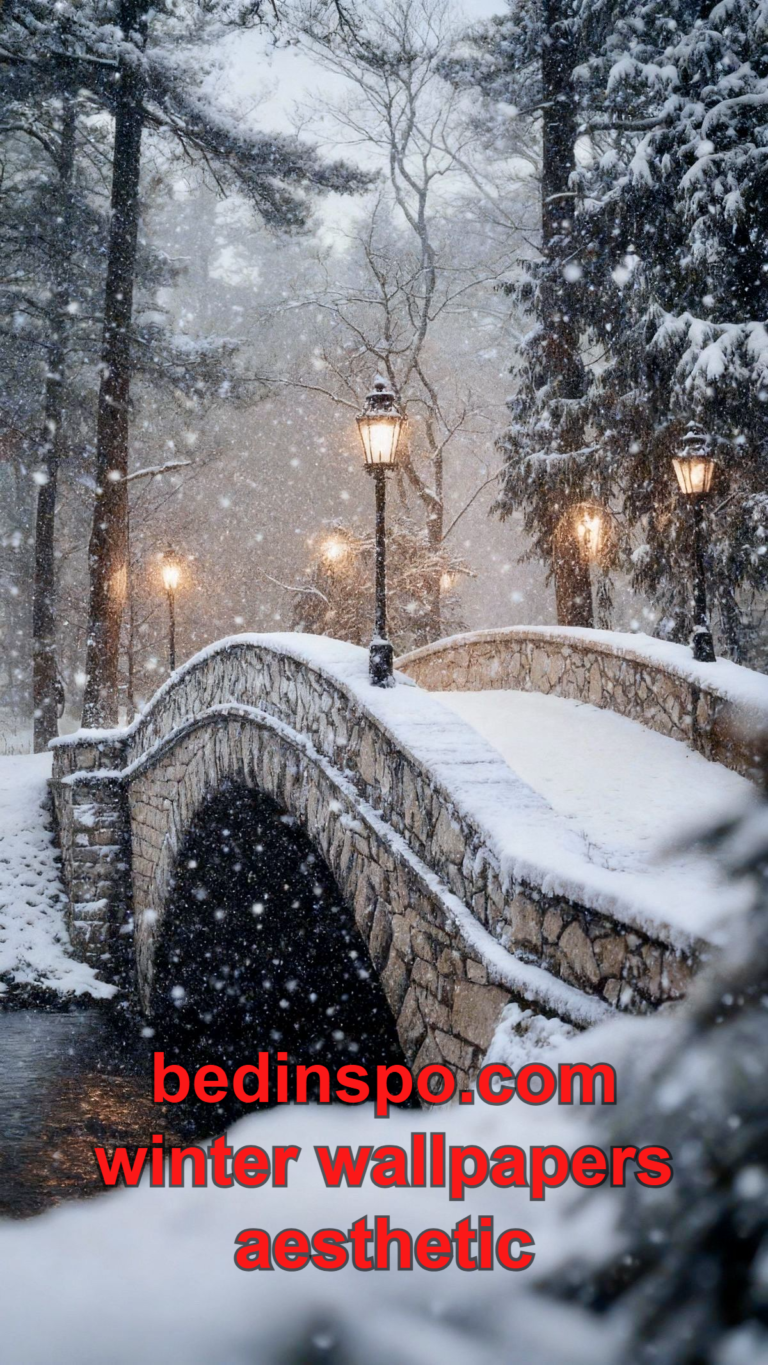
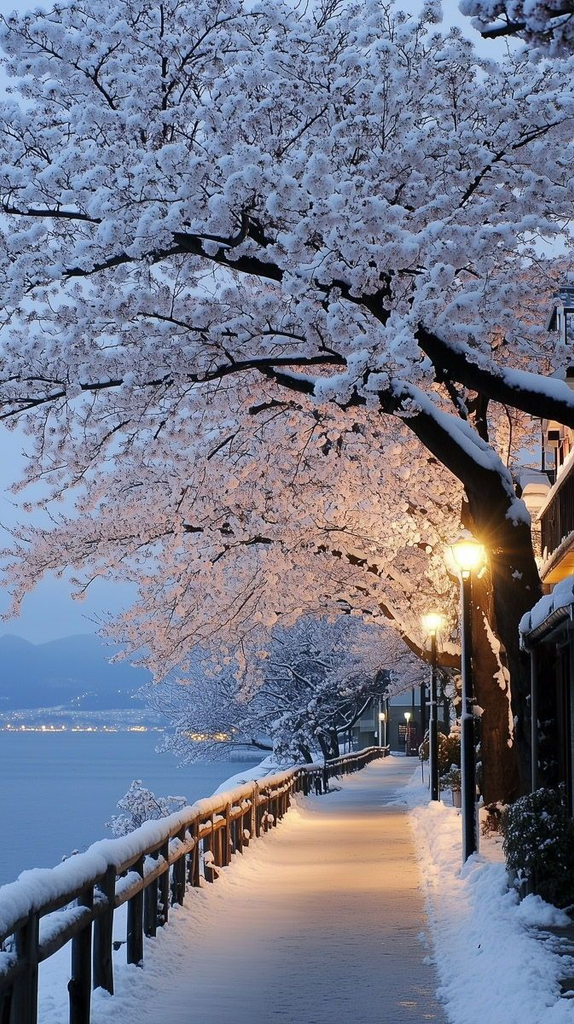
Several winter wallpaper styles have become particularly popular specifically for iPhone use. Minimalist snowflake designs work well as home screen wallpaper due to their simplicity, while detailed snowy landscape photography is often favored for lock screens where the full image can be appreciated. Cozy, warm-toned wallpaper featuring imagery like candles or knitted textures has also grown popular for those wanting a softer, less icy winter feel on their device.
Aesthetic Winter Wallpaper Trends for iPhone
Aesthetic-driven winter wallpaper has become especially popular among iPhone users who curate a cohesive visual theme across their entire home screen. Pastel winter tones, dark academia-inspired moody scenes, and cottagecore-style cozy imagery are among the most requested aesthetic categories for iPhone wallpaper specifically. These styles are often paired with matching custom app icons and widget themes for a fully coordinated look.
Using iOS Widgets With Winter Wallpaper
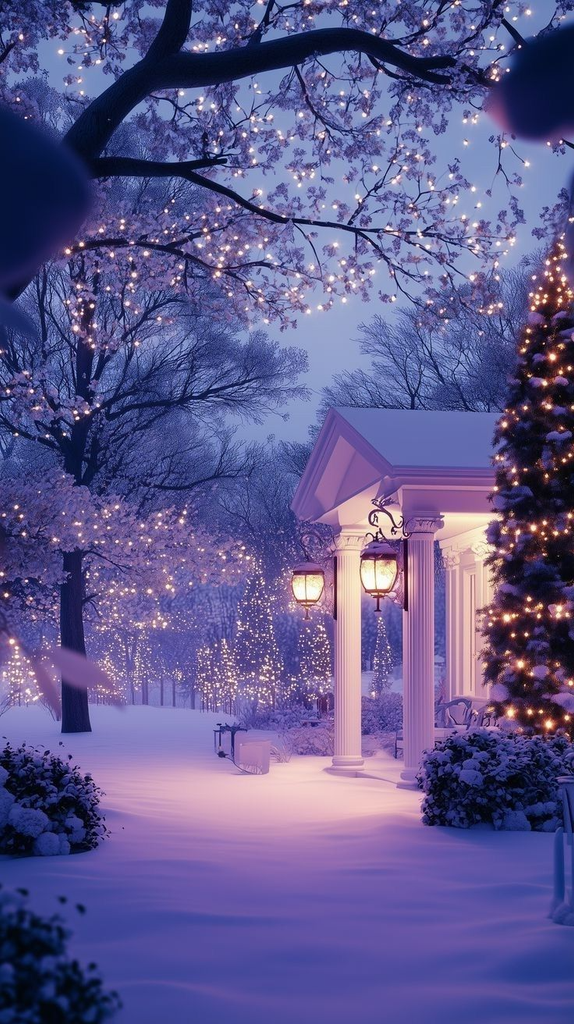
Since iOS introduced customizable widgets, many people now design their entire home screen — wallpaper included — around widget placement. Choosing winter wallpaper with strategically placed negative space allows widgets to sit naturally on the screen without obscuring important visual elements of the wallpaper. Weather widgets in particular pair well with winter-themed wallpaper, creating a cohesive, seasonally appropriate home screen setup.
How to Set Winter Wallpaper on iPhone

Setting a new wallpaper on iPhone is a straightforward process built directly into iOS settings. After saving a winter wallpaper image to your Photos app, opening the Settings app and navigating to the Wallpaper section allows you to select “Add New Wallpaper” and choose your saved image. From there, iOS allows you to adjust positioning, apply certain filters or effects, and set the image for either the lock screen, home screen, or both.
Customizing Winter Wallpaper With iOS Photo Effects
iOS offers built-in customization options that can enhance a winter wallpaper directly within the wallpaper settings menu. Depth effect, available for certain photos, can create a layered, three-dimensional look by placing the clock or widgets behind foreground elements of the image. Color filters and perspective adjustments also allow for subtle personalization of a winter wallpaper without needing external editing apps.
Live Photo Winter Wallpaper for iPhone
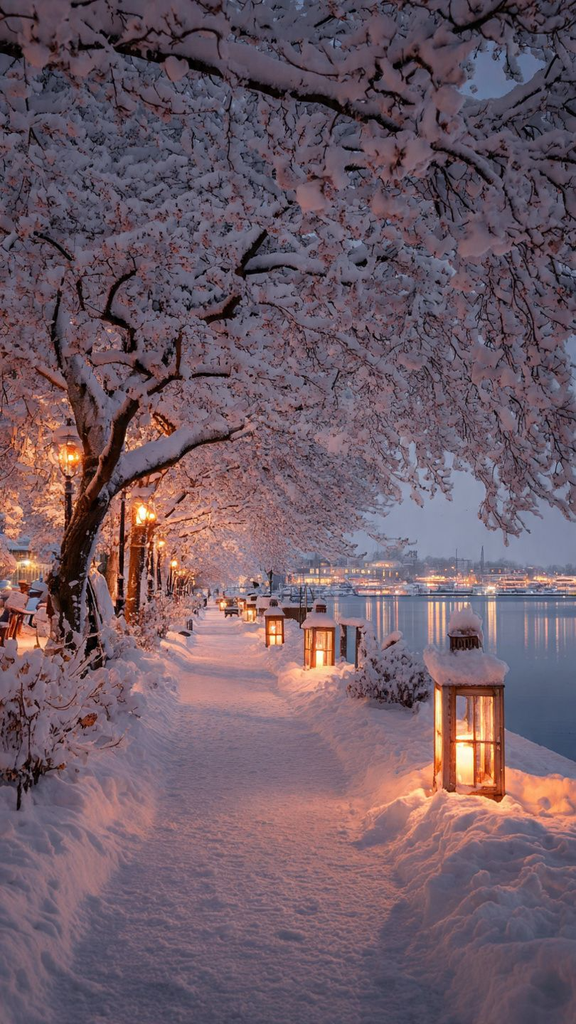
For a more dynamic option, iPhone supports Live Photo wallpaper, which adds subtle motion when the phone is picked up or the screen is touched. Winter-themed Live Photos — such as gently falling snow or flickering candlelight — can add an extra layer of atmosphere compared to a static image. This feature works particularly well for lock screen wallpaper, where the brief motion effect is most noticeable and appreciated.
Where to Find Winter Wallpaper Specifically for iPhone
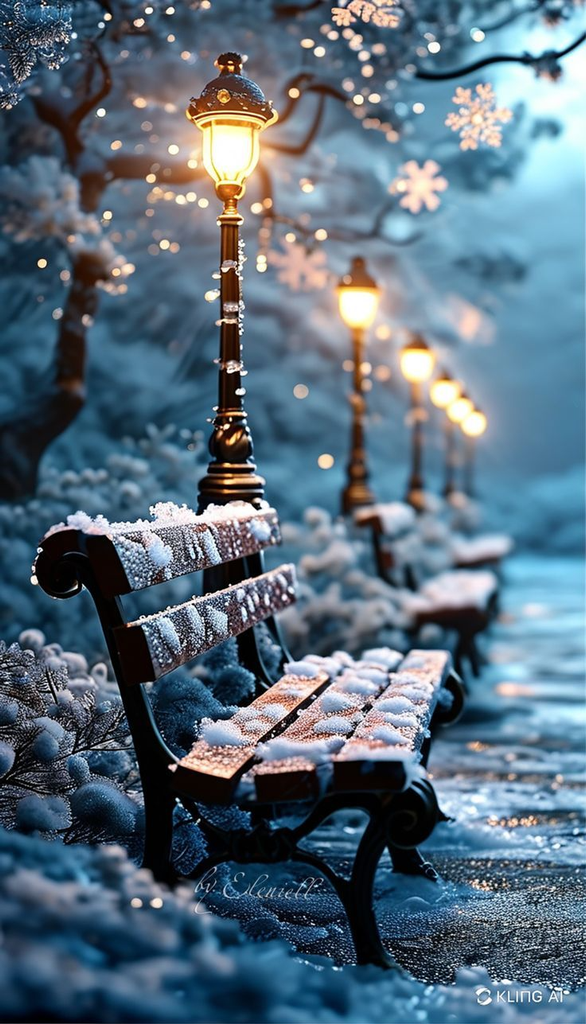
Many wallpaper apps and websites now offer collections specifically formatted and optimized for iPhone screens, taking the guesswork out of resolution and aspect ratio. Some platforms even organize winter wallpaper by specific iPhone model, ensuring a precise fit for devices with notches, Dynamic Islands, or varying screen dimensions. Official wallpaper apps available through the App Store often provide curated, high-quality winter collections updated seasonally.
Free vs. Paid Winter Wallpaper Apps for iPhone
Numerous free wallpaper apps offer extensive winter collections, making it easy to find seasonal designs without any cost. Paid wallpaper apps, meanwhile, often provide higher-resolution images, exclusive designs from featured artists, and additional customization tools not available in free alternatives. For those who frequently update their wallpaper, a paid app subscription may be worthwhile for consistent access to fresh, high-quality winter designs throughout the season.
Matching Winter Wallpaper With App Icon Themes
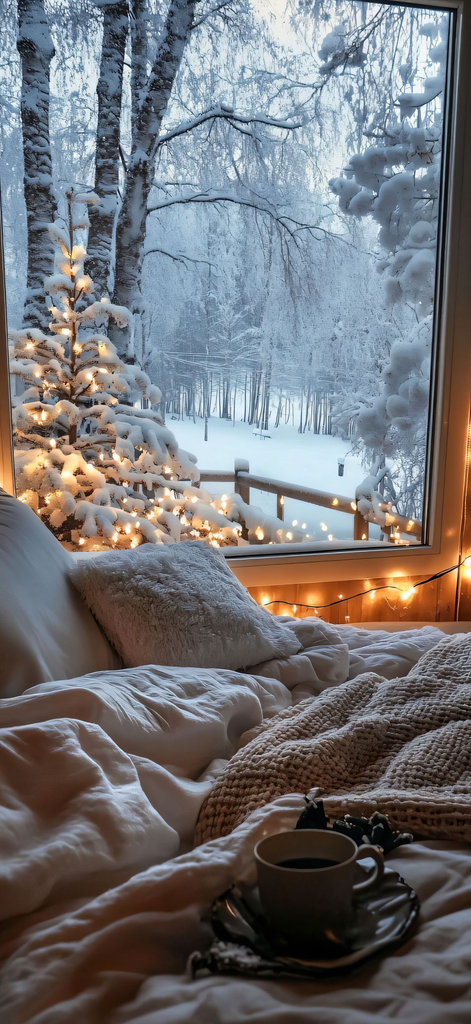
A growing trend among iPhone users involves matching winter wallpaper with custom app icon themes for a fully cohesive aesthetic. This typically requires using the Shortcuts app to create custom icon designs, which are then applied across commonly used apps. Winter wallpaper in muted, cool tones often pairs beautifully with icy blue or white icon themes, while cozy, warm-toned winter wallpaper works well with cream or soft brown icon palettes.
Winter Wallpaper for iPad vs. iPhone
While this guide focuses on iPhone, it’s worth noting that iPad wallpaper follows similar principles but requires different resolution considerations due to the larger screen size and different aspect ratios. Winter wallpaper designed specifically for iPhone may appear stretched or improperly cropped on an iPad, making it important to seek out wallpaper explicitly sized for whichever Apple device you’re using.
Minimalist Winter Wallpaper Ideas for iPhone
For those who prefer a clean, distraction-free look, minimalist winter wallpaper remains one of the most popular choices for iPhone. Simple designs like a single snowflake, a soft gradient sky transitioning from gray to white, or a lone bare tree silhouette work particularly well as both lock screen and home screen wallpaper without overwhelming the display or clashing with icons.
Cozy and Warm-Toned Winter Wallpaper Ideas for iPhone
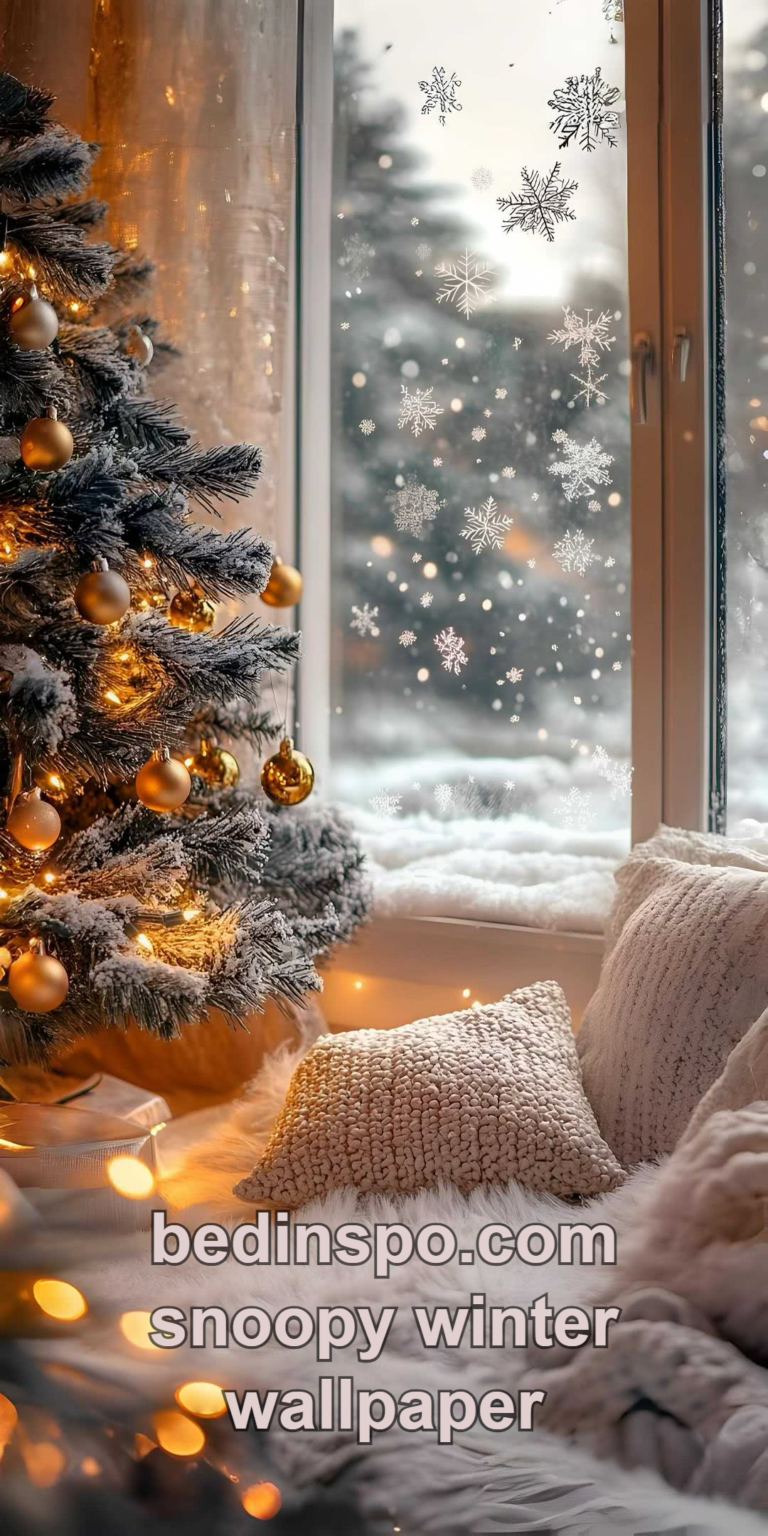
Not everyone wants an icy, cool-toned winter aesthetic, and warm, cozy wallpaper has become an increasingly popular alternative for iPhone users. Imagery featuring soft candlelight, warm interior lighting, or gently falling snow against a warm-toned sky offers a comforting alternative to traditional stark white winter scenes, particularly appealing during the darker winter months.
Seasonal Rotation Tips for iPhone Wallpaper
Many iPhone users treat wallpaper as part of a broader seasonal rotation, refreshing their lock and home screens as winter approaches and again as the season transitions toward spring. iOS makes this especially convenient through its wallpaper gallery feature, which stores previously used wallpapers for easy re-selection in future seasons rather than requiring a completely new search each time.
Troubleshooting Common Winter Wallpaper Issues on iPhone
A few common issues can arise when setting winter wallpaper on iPhone. Blurry or pixelated wallpaper usually indicates the source image resolution was too low for the device’s screen. Wallpaper that appears cropped incorrectly often results from an image with the wrong aspect ratio for the specific iPhone model. Ensuring wallpaper images are sourced at the correct resolution and orientation for your exact device typically resolves most common display issues.
Conclusion: Finding Your Perfect Winter Wallpaper for iPhone
Winter wallpaper for iPhone offers an easy, immediate way to bring seasonal charm to one of the most frequently viewed screens in daily life. Whether you prefer detailed snowy landscapes, minimalist snowflake designs, or cozy warm-toned imagery, understanding iOS-specific features like Live Photos, depth effects, and widget-friendly composition will help you choose and set a winter wallpaper that looks polished and intentional on your device.
Frequently Asked Questions
What resolution should winter wallpaper be for iPhone? Resolution requirements vary by iPhone model, but most modern devices require high-resolution vertical images to avoid blurriness on Super Retina XDR displays.
Can I use different winter wallpaper for my lock screen and home screen on iPhone? Yes, iOS allows separate wallpaper selections for the lock screen and home screen, letting you use a detailed scenic image for one and a simpler design for the other.
How do I set a Live Photo as winter wallpaper on iPhone? After selecting a Live Photo from your camera roll in the wallpaper settings, iOS automatically enables the live motion effect for use on the lock screen.
Where can I find free winter wallpaper for iPhone? Free wallpaper apps and websites offer extensive winter collections, often organized by iPhone model to ensure a proper fit for your specific device.
Why does my winter wallpaper look blurry on my iPhone? Blurry wallpaper typically results from using an image with a resolution too low for your iPhone’s screen, so choosing a higher-resolution image usually resolves the issue.
How do I match winter wallpaper with custom app icons on iPhone? Using the Shortcuts app to create custom icon designs in colors that complement your wallpaper’s palette allows for a cohesive, matched aesthetic across your home screen.

What’s the best type of winter wallpaper for a cluttered home screen? Minimalist wallpaper with simple shapes and ample negative space tends to work best on a home screen filled with widgets and app icons.
Does iPhone wallpaper size differ from iPad wallpaper size? Yes, due to differing screen dimensions and aspect ratios, wallpaper designed specifically for iPhone may not display properly on an iPad without an appropriately resized version.